

How to Configure IPMAX Proxies in Purplebird Browser (Step-by-Step)
IPMAX proxies must be used from an overseas network environment. This tutorial assumes you already have one and focuses only on what to configure inside the Purplebird (Ziniao) fingerprint browser.
Purplebird (紫鸟) is a multi-store browser commonly used by cross-border sellers. It gives every store its own isolated browser profile and lets you bind a dedicated proxy IP to that profile. In short: the fingerprint browser handles isolation, the proxy handles the network exit point — you need both.
1. Before you start
- Purplebird client installed and signed in
- Your IPMAX proxy details: protocol (SOCKS5 or HTTP), host, port, username, password
- A working overseas network environment (IPMAX proxies do not support direct connections from mainland China)
2. Open Device Management
After signing in, go to Device Management. This is where the network exit point for each store profile is configured.
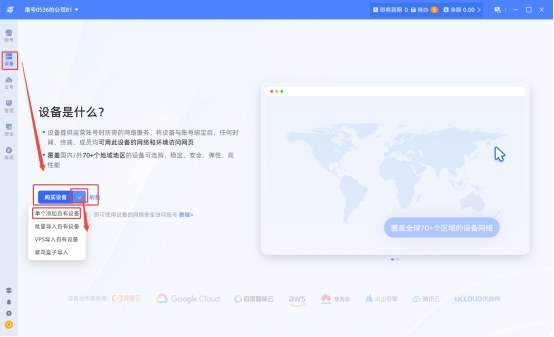
3. Add a custom device
Click “Add Custom Device” and give it a recognisable name — naming it after the store or target market saves a lot of guesswork later.
4. Enable proxy and fill in your IPMAX details
Keep Network Property on “Static”, check “Support Proxy” under Device Features, then fill in the fields below:
| Field | Value |
|---|---|
| Proxy type | Match the protocol shown in your IPMAX dashboard (SOCKS5 or HTTP) |
| Address / domain | The proxy host from IPMAX |
| Port | The port that corresponds to that protocol |
| Username / password | Select “Yes” and enter your IPMAX proxy credentials |
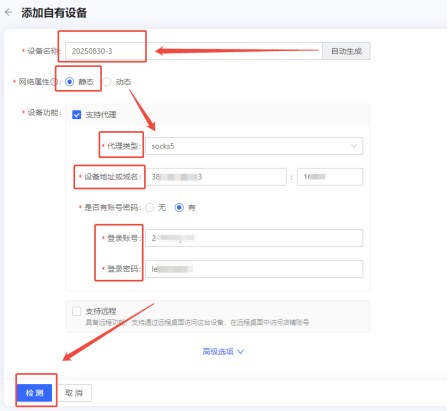
Protocol and port must match: if your dashboard gives you a SOCKS5 port, do not connect to it over HTTP. This is the single most common cause of connection failures.
5. Click Check to verify connectivity
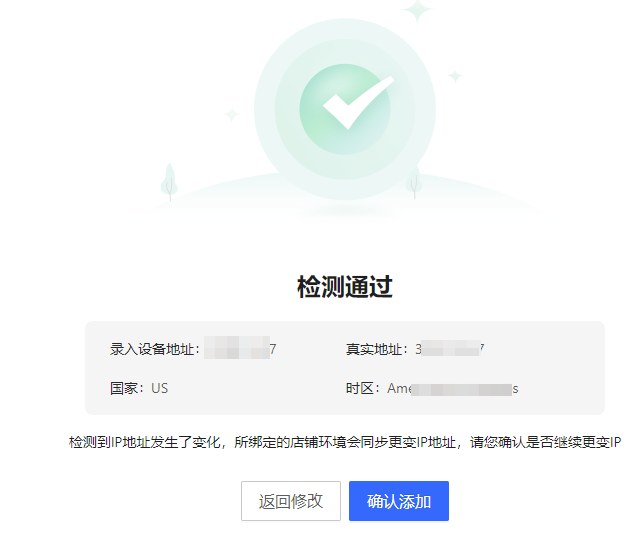
Before saving, click “Check”. Purplebird will make a real request through the proxy and report “Check passed”, showing the detected IP, country and time zone — proof that the proxy is live.
If the check fails
- Make sure the machine is actually on an overseas network — IPMAX proxies cannot be reached directly from mainland China
- Verify the protocol and port belong together
- Re-enter the proxy username and password, watching for stray spaces
- Confirm the IP has not expired and is not already in use by another device on your account
- If the exit country does not match your target market, switch to an IP in the right region and check again
6. Add the store account and bind the device
Go to Account Management and click “Add Account”.
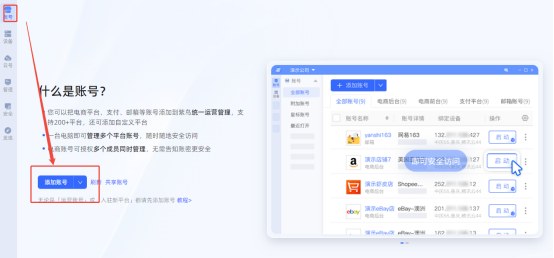
Fill in three sections:
- Basic information — platform, account name, login credentials
- Security settings — two-factor authentication and operation protection, as needed
- Browser environment — choose “Bind device” and select the IPMAX device you just created
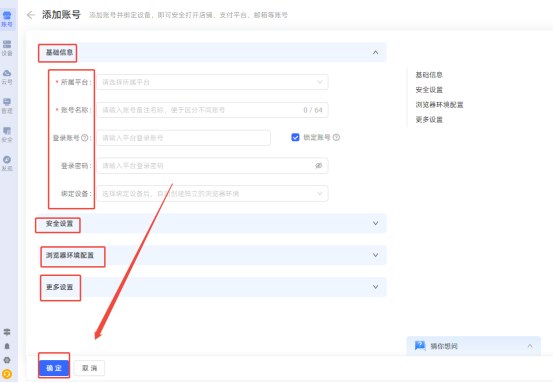
This step is what makes the whole setup work. An account without a bound device is still unprotected — the proxy may as well not exist.
7. Launch the account and confirm the exit IP
Save, then click “Launch” in the account list. Before you start working, open an IP lookup page inside the browser profile and confirm the IP matches the one assigned by IPMAX and the country matches your target market. This one habit prevents most “wrong environment” incidents.
8. Why fingerprint browsers pair well with static residential IPs
A fingerprint browser isolates cookies, cache and fingerprint parameters. But platforms also see which network you come from. If several store profiles share one exit IP — or the IP changes all day — isolation alone will not protect you.
Static residential IPs are fixed and look like real users: the IP stays the same for the rental period and belongs to a real ISP network. They suit long-term logins and any workflow that needs a stable exit point, such as daily store operations, ad account management and IP allowlists. Workloads that need heavy IP rotation — scraping, monitoring, ad verification — are better served by residential proxy pools. The two are not mutually exclusive and can run side by side under one IPMAX account.
Conclusion
Three steps: create a device with your proxy, verify connectivity, bind the account. Configuration is the easy part; keeping it consistent is what matters — one stable IP per store profile, and a naming scheme you can still read when you have dozens of them.